
Apple Email Guide
Apple Email Guide
Apple Email Guide
Setting up your corporate email to work on your apple device is very simple. Below you will find a walkthrough on how to do so. This works for both Microsoft 365 and On-Premise Exchange accounts.
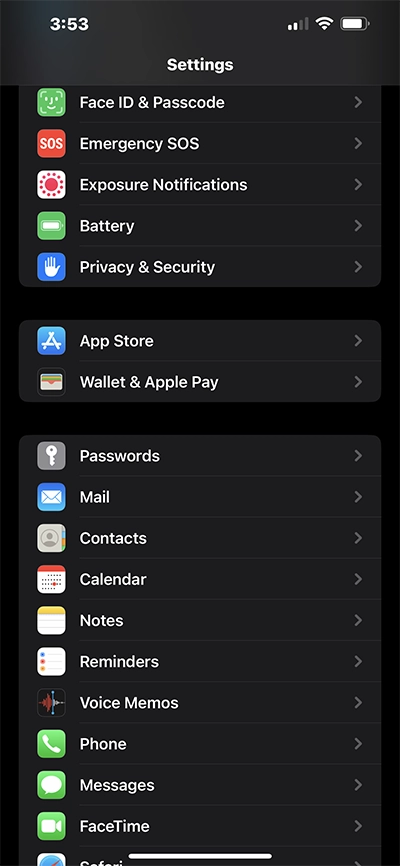
Step 1
Open your Settings App then Select Mail
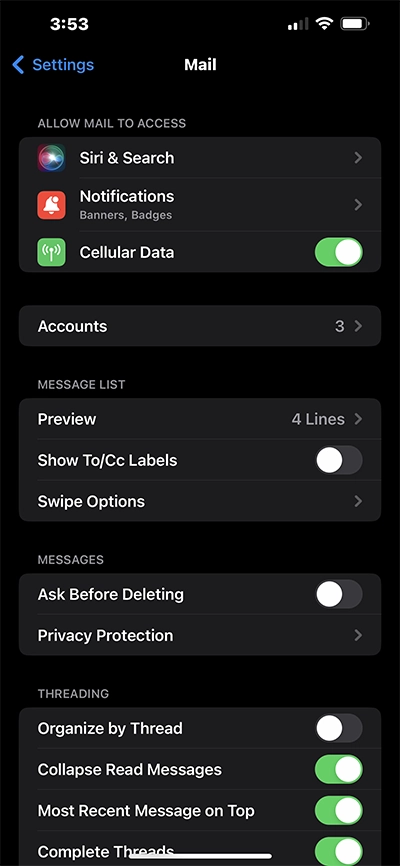
Step 2
Select Accounts
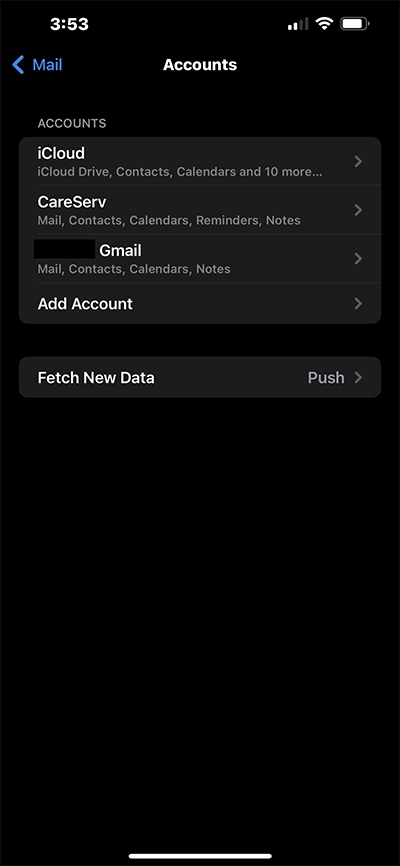
Step 3
Select Add Account
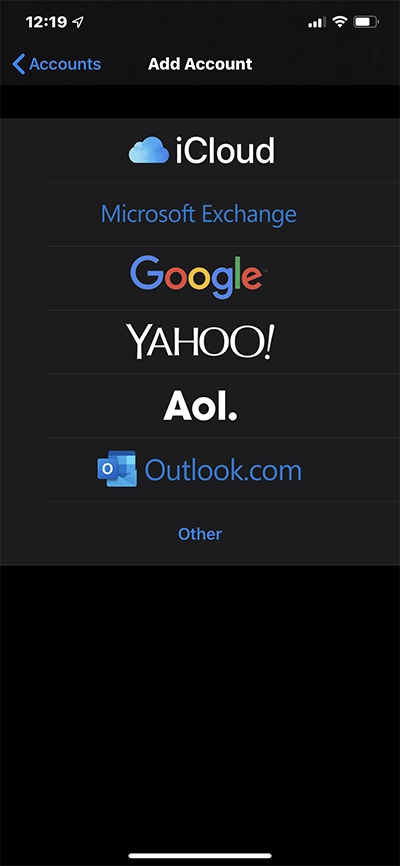
Step 4
Select Microsoft Exchange
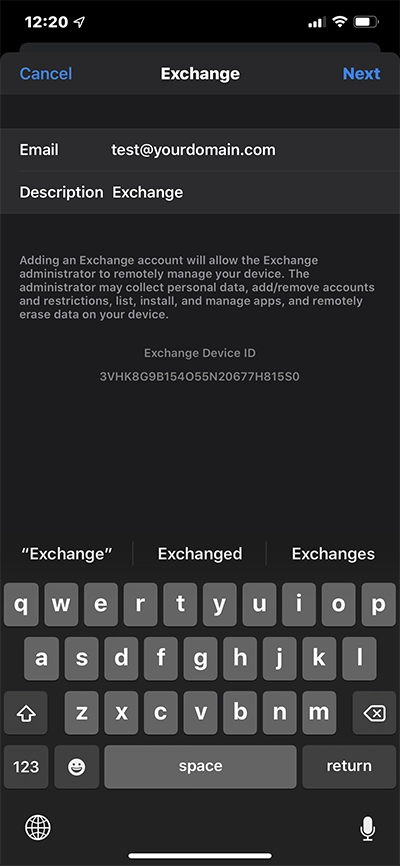
Step 5
Enter your Email Address and a Description for the account. The description given will be what is shown in your Apple Mail App so give it something recognizable so you know what account it is when accessing it.
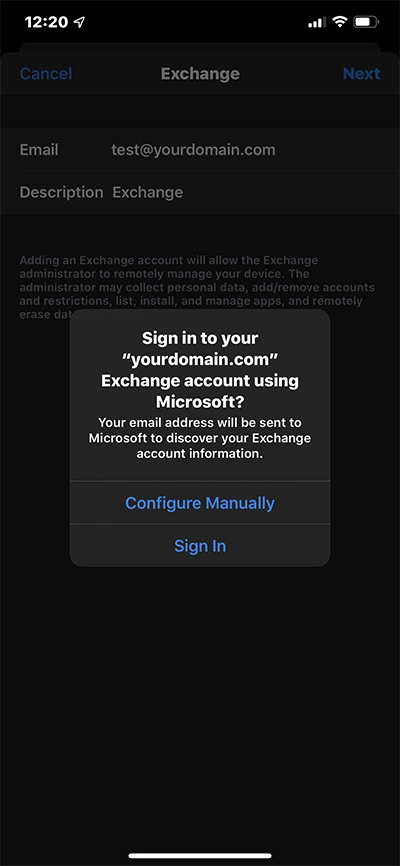
Step 6
Select Sign In
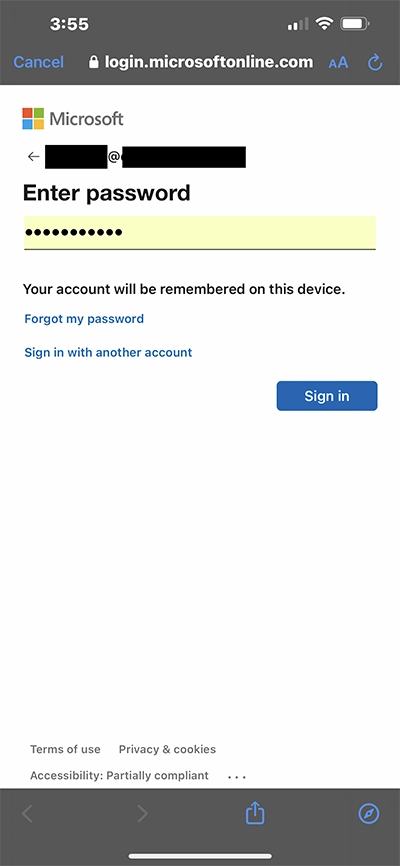
Step 7
Enter your password to your account. Please note if you have MFA enabled on your account you will be required to Authenticate the account using one of the approved methods associated with your account.
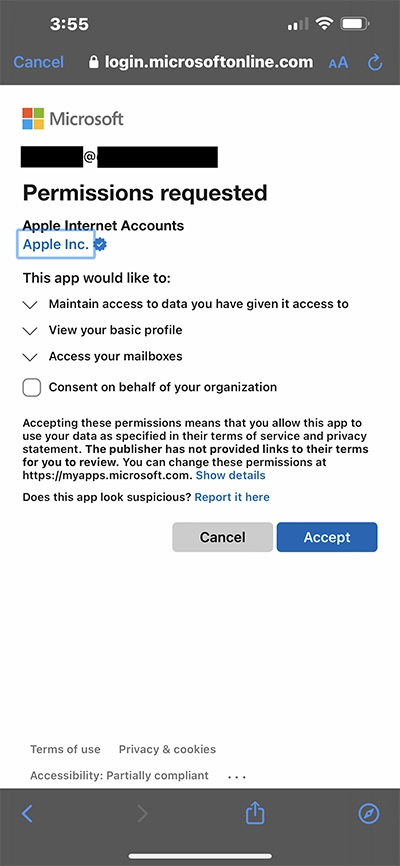
Step 8
Select Accept to accept the permissions being requested by the mail account
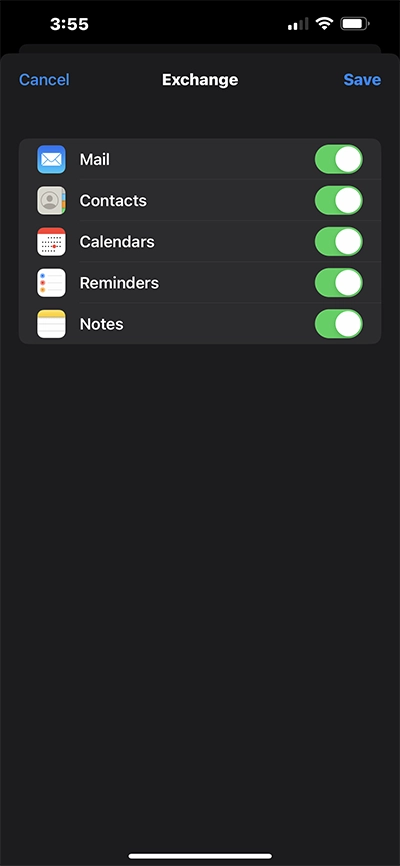
Step 9
Normally you would leave everything selected but if you wish to unselect for anything to sync to your phone you would do so here.