
Outlook Email Guide
Outlook Email
Outlook Email Guide
Setting up Microsoft Outlook on your Windows machine is quite easy. This guide will walk you through logging into your Microsoft 365 email account using MFA.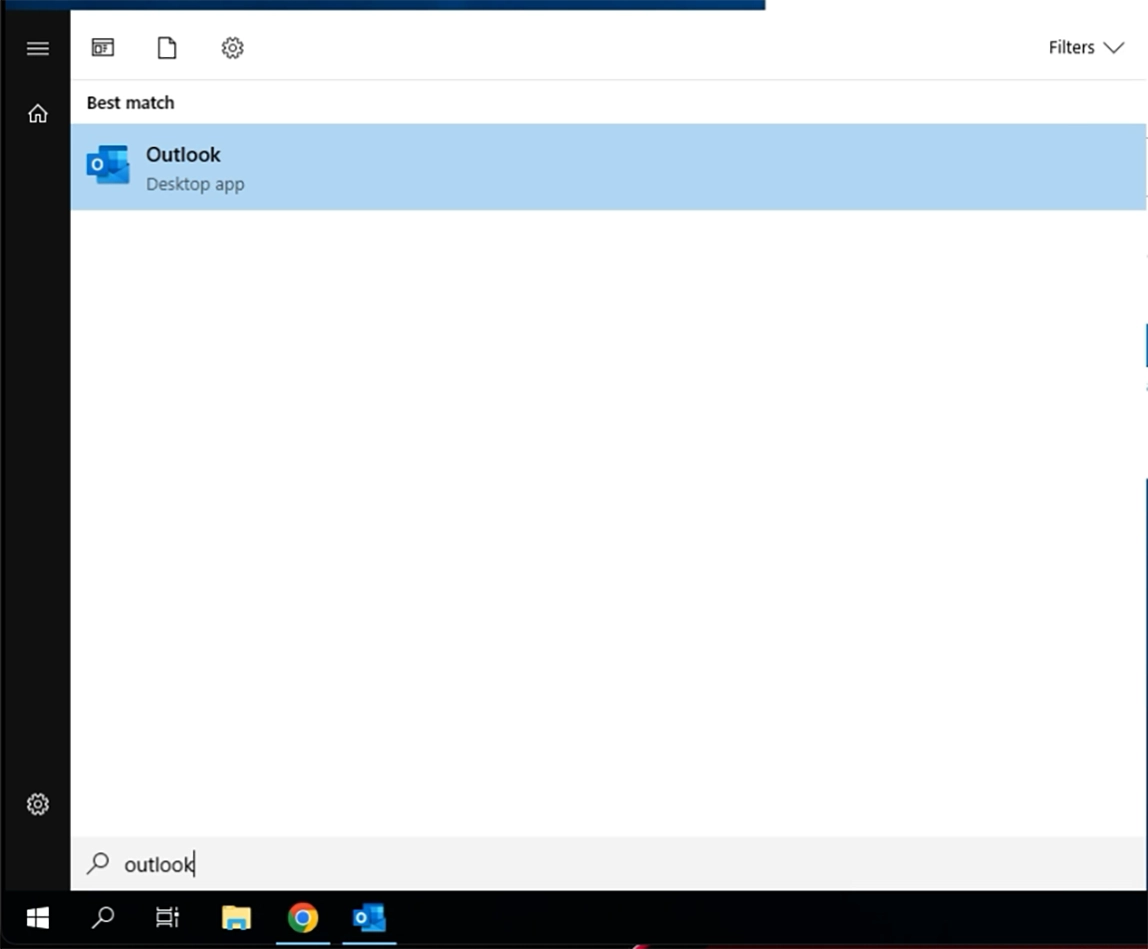
Step 1
Click on your start button and search for Outlook. Select Outlook and begin the loading process.
Step 2
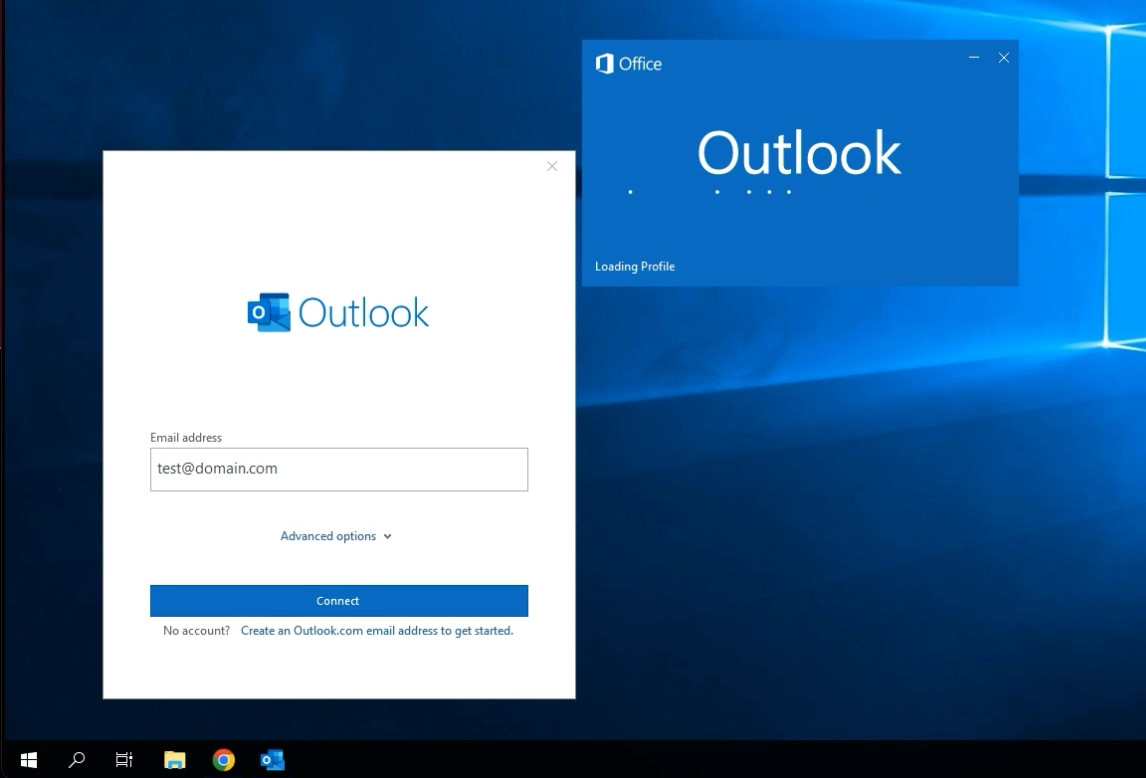
Once you launch outlook, a window will open and ask for you to enter your email account. If your computer login is linked to your Microsoft 365 Tenant then it may auto-populate for you. Once entered click on connect.
Step 3
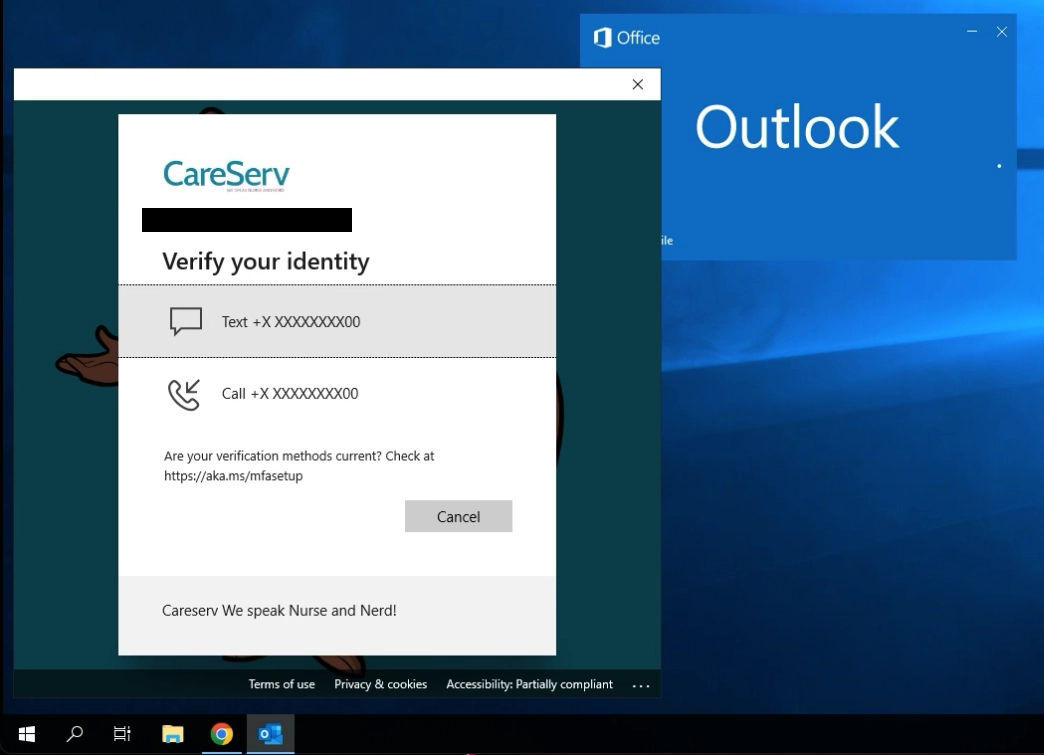
Depending on your Microsoft 365 Setup you may be asked to enter your account password and/or MFA. As you see in this screenshot the MFA is attempting to send a text message or a phone call to a number on file. Click your desired method of authentication.
Step 4
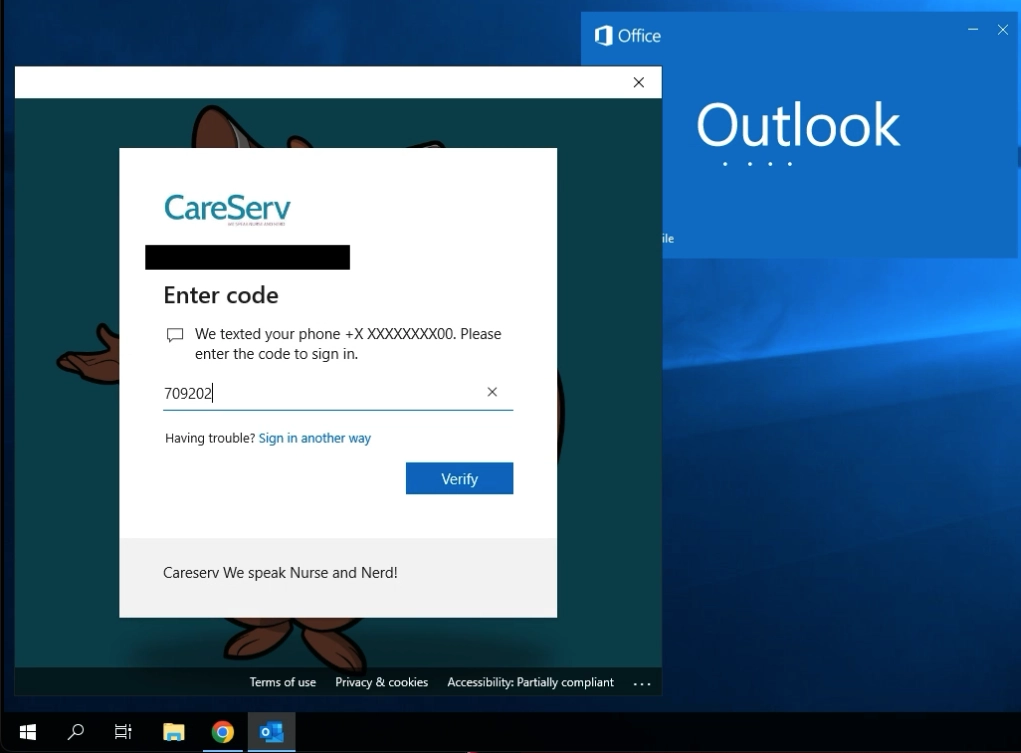
Enter the 6-digit code you receive from your authentication and click on verify.
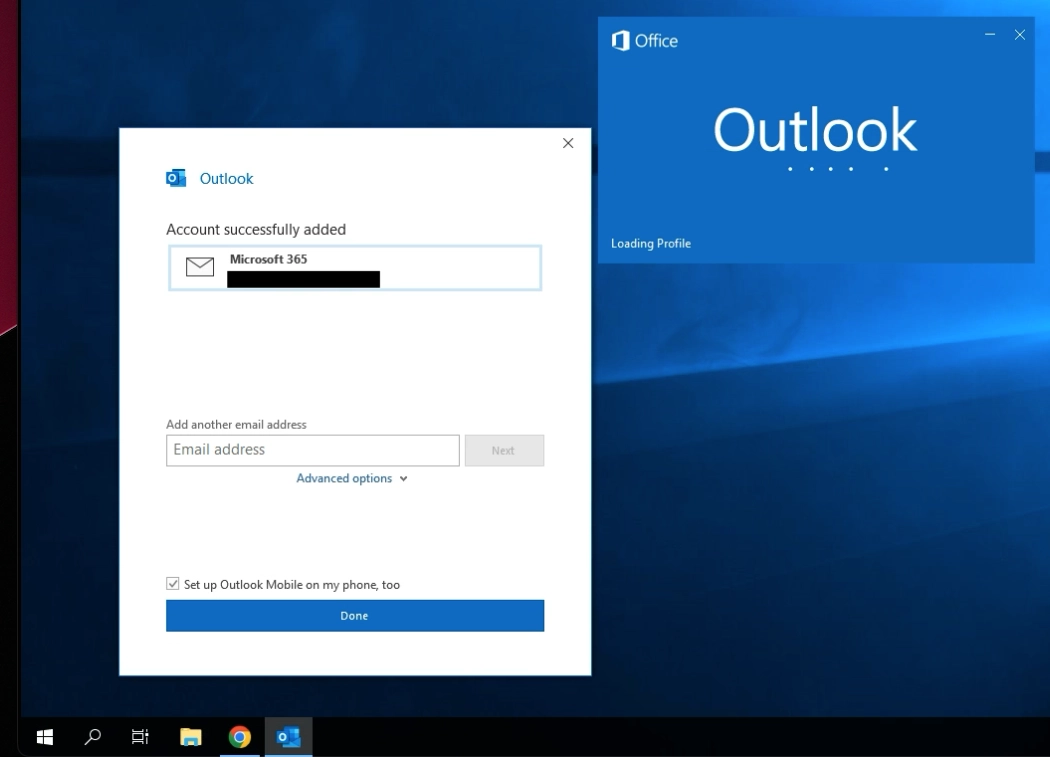
Step 5
A confirmation box will appear. Here you can select to add additional email accounts as well as a check box to install Outlook on your mobile device. You can choose to add more email addresses and/or uncheck the box to set up Outlook on your mobile device. Once completed click on Done.